How to create a Warehouse?

Guides
TOTAL FOOD CONTROL

How to create a Warehouse?

Creating warehouses is one of the most important actions when you start using the Total Food Control APP. On this occasion, we have prepared a small step-by-step guide for you to learn how to create these warehouses in a simple way. Don’t wait any longer and follow this training capsule to start using Total Food Control correctly.

Steps to follow to create a Warehouse

In the latest software update we have added a short tutorial on the first steps to follow when using Total Food Control for the first time. In the creation of the first warehouse, the steps include:

1. In the “Receiving” section of the main menu, click on the “Warehouse” section.
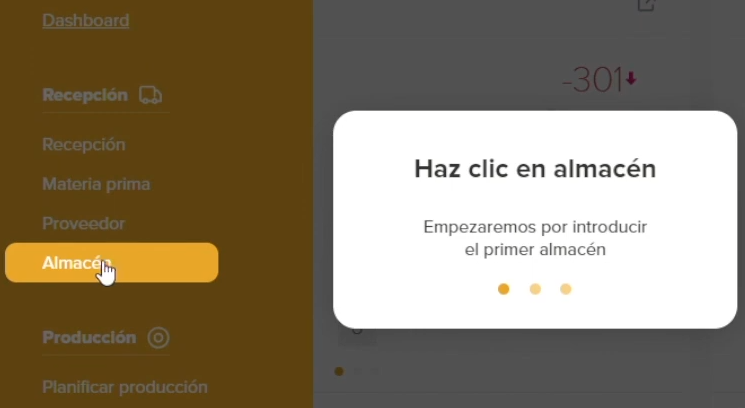
2. Then click on the “Add new” button on the top left.
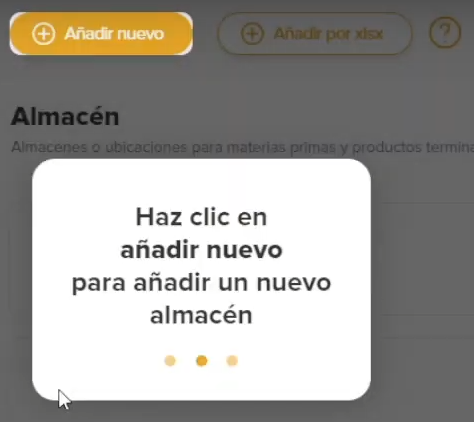
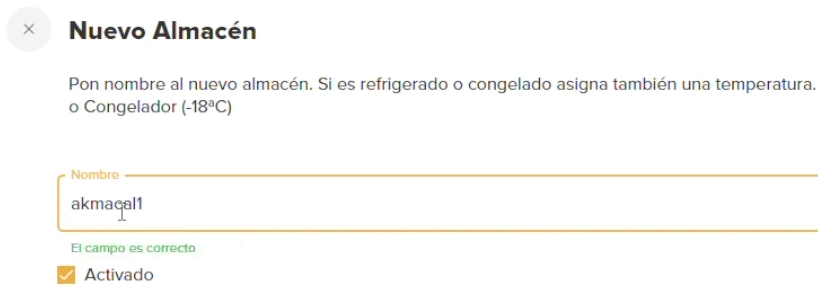
3. Fill in the name of the warehouse and click on “Register”.
4. At this point you have already created your warehouse, now you only need to add the products. To do this, you have to click on the warehouse to select it and click on “Add products”. You can do it individually or in bulk.


Request your free trial of Total Food Control

Digitization and adoption of Total Food Control represent a paradigm shift in the food industry. In a constantly evolving world where quality, safety and efficiency are paramount, these tools have become the engine that drives operational excellence.

We invite you to take the first step towards a future of excellence in the food industry. Discover how Total Food Control can transform your operations and contribute to the safety and quality of the food you produce.

Request a free 10-day trial today and witness the revolution that is reshaping the food industry!

How to create a NEW RAW MATERIAL RECEIPT?

Guides
TOTAL FOOD CONTROL

How to create a NEW RAW MATERIAL RECEIPT?

In this short tutorial, we focus on explaining how to create a new receipt of a raw material in the software of Total Food Control. You can follow the video tutorial step by step or follow the guide so as not to miss any point.

Steps to follow to create a new reception

Once the suppliers and the different raw materials have been added in the software, in order to manage traceability correctly, we will have to add the reception of raw materials when necessary. Although it is a very simple process, below you have all the steps to follow to create a new reception correctly:

1. The first step is to go to the “Receipts” section , click on the “Add new” button at the top left and select “New MP receipt”.

2. Next, we select the supplier.

3. We add the raw materials, filling in the data of “Expiry date”, “Quantity”, “Date of receipt” and “Delivery note number”. If no batch number is entered, the delivery note number will be assigned by default.

4. Finally, when all the information is entered, click on “NEXT”.

5. We assign warehouses and fill in the quality control and we have the raw material added.


Want a FREE trial of Total Food Control?

Total Food Control is a food traceability and inventory control software that can facilitate the management of your company. With Total Food Control, you can accurately keep track of expiration dates, minimum stocks, traceability trees, etc.

In addition, you can request your free 10-day trialThis allows you to explore its features and benefits before making a final decision. Take advantage of this opportunity to improve your warehouse management and optimize the quality of your products in the food industry.

Approve a RAW MATERIAL and a SUPPLIER

Guides
TOTAL FOOD CONTROL

Approve a RAW MATERIAL and a SUPPLIER

In this short guide we explain how to homologate a raw material and a supplier in Total Food Control software. You can follow the video tutorial we have prepared to understand the approval process or use the guide with screenshots of each section.

What is the Homologation of a raw material?

The homologation of a raw material in the food industry refers to the process of recognize the allergens involved and the suitability of that PM for the final product. To do this, the supplier’s technical data sheet should be checked.

Once a raw material has been approved, it is considered suitable for use in food production and can be used by manufacturers in a safe and reliable manner. Approval is an important process to ensure the quality and safety of the food that reaches the market and to protect the health of consumers.

Steps to follow for Total Food Control Approval

Here is a short tutorial on how to homologate your raw materials and suppliers in the Total Food Control software:

1.Starting from the control panel, we start by clicking on “Raw material”.

2. Once we get to the screen where we find the list of raw materials, we click on the three dots of the ingredient we want to homologate.

3. Next, the file of the raw material in question appears with data such as the stock, its documentation, suppliers, etc. Here we must go to the Suppliers section and click on “Add new” or edit an existing supplier.


4. Finally, selecting a raw material with its supplier, we mark the allergens that appear in its data sheet and click on “Register”.

5. Now we can see how this raw material is already approved with a green label and a letter “H”.

Want a FREE trial of Total Food Control?

Total Food Control is a food traceability and inventory control software that can facilitate the management of your company. With Total Food Control, you can accurately keep track of expiration dates, minimum stocks, traceability trees, etc.

In addition, you can request your free 10-day trialThis allows you to explore its features and benefits before making a final decision. Take advantage of this opportunity to improve your warehouse management and optimize the quality of your products in the food industry.